
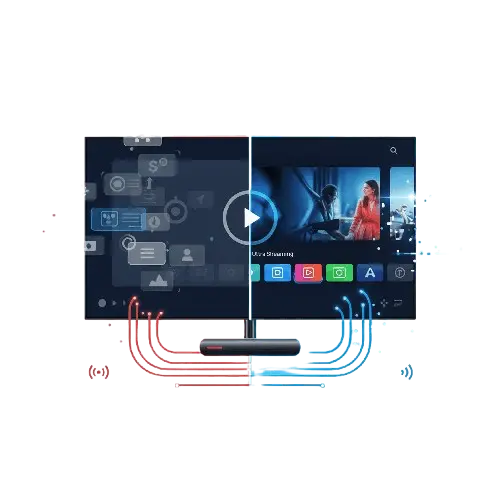
We have all been there. You have settled onto the sofa with a cup of tea or a cold drink, ready to watch the big match or the latest blockbuster movie. You fire up your Amazon Firestick, launch your IPTV app, and… buffering. The screen freezes, the audio de-syncs, or the menu becomes incredibly sluggish.
It is frustrating, especially when you know you have a decent internet connection and a reliable Subscription. But before you panic or think about replacing your device, you should know that the problem is often much simpler than hardware failure.
The Amazon Firestick is a fantastic piece of kit—compact, affordable, and powerful. However, like any computer, it accumulates digital “dust” over time. This clutter can clog up the processor and memory, leading to performance issues. If you find your Firestick running slow, the culprit is likely a build-up of cache.
In this guide, we will walk you through exactly how to clear the cache on your Firestick and share expert tips to optimise Firestick for IPTV streaming. By the end of this article, your device should be running as smoothly as the day you bought it.
To understand how to fix the problem, we first need to understand why it happens. The Amazon Firestick, particularly the older models or the Lite versions, has a limited amount of internal storage and Random Access Memory (RAM).
When you first unbox the device, it is empty and fast. But as you use it, several things happen:
Cache Accumulation: Every app you use stores temporary files to help them load faster next time. Over time, these files grow large and become corrupt.
Background Processes: Some apps continue running in the background even when you aren’t using them, eating up valuable processing power.
Low Storage: If you install too many apps, the Firestick runs out of “breathing room,” causing the operating system to struggle.
For IPTV users, this is critical. IPTV streaming is a resource-intensive task. It requires the device to constantly download, decode, and display high-definition video data in real-time. If your Firestick is bogged down by junk files, it cannot process the stream from your Premium Service quickly enough, resulting in that dreaded buffering wheel.
Let’s simplify the technical jargon. Think of “cache” like a messy desk.
When you are working, you might pull out files, photos, and notes and spread them across your desk so you can reach them quickly. This is helpful in the short term. However, if you never tidy up, your desk eventually becomes so covered in paper that you cannot find anything, and you have no room to work.
Your Firestick does the same thing. When you browse your IPTV app, look at the EPG (Electronic Programme Guide), or scroll through movie thumbnails, the app saves those images and data so it doesn’t have to download them again five seconds later. This is the cache.
While cache is designed to speed things up, it eventually does the opposite. An IPTV app can accumulate hundreds of megabytes of cache very quickly. When the cache gets too full or corrupted, the app struggles to sift through the data, leading to lag, crashes, and buffering—regardless of how good your Subscription is.
“One of the most common hurdles for new Firestick users is finding the popular ‘IPTV Smarters’ app, as it has been removed from the Amazon Appstore. However, you can still get it easily by using a method called ‘sideloading.’ We have written a complete walkthrough on how to get it running in minutes using the Downloader app: [How to Install IPTV Smarters Pro on Firestick using Downloader (Step-by-Step)].”
Cleaning your Firestick is a safe and simple process. It does not require any hacking or technical wizardry. Here is how to scrub your device clean and get it back to top speed.
The most important apps to clean are the ones you use the most. If you use IPTV Smarters, TiviMate, or XCIPTV, these should be your first target.
Go to the Home Screen: Press the Home button on your remote.
Navigate to Settings: Scroll to the right until you highlight the cog icon (Settings).
Select Applications: Scroll down and click on ‘Applications’.
Manage Installed Applications: Scroll down and select this option. You will see a list of every app on your Firestick.
Find Your IPTV App: Scroll through the list until you find the app you use for your Subscription.
Click on the App: Select it to open the options menu.
Select ‘Clear Cache’: Important: Be careful here. You will see two options: ‘Clear Data’ and ‘Clear Cache’. Only select ‘Clear Cache’.
Confirm: You should see the cache size drop to zero (or near zero).
Repeat this process if you have multiple IPTV players installed.
It is not just your IPTV app that causes the Firestick running slow. Streaming apps like Netflix, YouTube, Prime Video, and BBC iPlayer are notorious for hoarding cache.
Even screensavers and system apps build up junk. To truly optimise Firestick for IPTV, you should go through your list of ‘Managed Installed Applications’ and clear the cache for any app you use frequently. It might take five minutes, but the performance boost is well worth the effort.
Clearing the cache is the most effective quick fix, but for long-term stability, you should adopt a few other maintenance habits.
Putting your Firestick to sleep is not the same as restarting it. Sleep mode keeps apps suspended in the RAM. A proper restart flushes the RAM completely, giving the device a fresh start.
You can do this in two ways:
The Hard Reset: Simply unplug the power cord from the Firestick or the wall socket, wait for 10 seconds, and plug it back in.
The Soft Reset: Go to Settings > My Fire TV > Restart.
Doing this once a week can prevent many common lagging issues associated with your Premium Service.
Firesticks typically only have about 8GB of storage, and a large chunk of that is taken up by the operating system. If your storage is nearly full, the device will slow down significantly.
Go back to Settings > Applications > Manage Installed Applications. Look at the list. Are there games you played once and forgot? Streaming apps you cancelled the Subscription for months ago?
Select those apps and choose Uninstall. Freeing up space is one of the best ways to optimise Firestick for IPTV.
Amazon frequently releases software updates to fix bugs and improve performance. Sometimes, an app might be lagging simply because the Firestick’s operating system is outdated.
To check for updates:
Go to Settings.
Select My Fire TV (or Device & Software).
Select About.
Click Check for Updates.
If an update is found, select Install Update.
There is no hard and fast rule, but for heavy users, regular maintenance is key.
If you use your Premium Service daily to watch live sports or movies, we recommend clearing the cache on your IPTV app once a week.
For casual users, checking it once a month should be sufficient. However, if you ever notice the menu becoming sticky or the stream beginning to stutter, clearing the cache should always be your first troubleshooting step before contacting support about your Subscription.
This is the most common worry users have. Will clearing the cache wipe my login details? Will I lose my favourites list?
The answer is No.
Clear Cache: This removes temporary junk files. It does not sign you out, delete your playlists, or remove your favourites. It is completely safe.
Clear Data: This is the option you must avoid unless you want to reset the app completely. Clicking ‘Clear Data’ resets the app to its factory state, meaning you would need to re-enter your username, password, and server URL.
As long as you only click ‘Clear Cache’, your Subscription details remain safe and sound.
Now that your Firestick is clean and optimised, here are a few final tips to ensure you get the most out of your Premium Service.
Check Your Internet Connection: A fast Firestick cannot fix slow internet. Ensure you are getting good speeds. If possible, use an Ethernet adapter for your Firestick instead of WiFi for a more stable connection.
Turn off Data Monitoring: Amazon tracks data usage, which uses system resources. Go to Settings > Preferences > Data Monitoring and turn it OFF.
Disable Autoplay: On the Firestick home screen, videos often autoplay. This eats bandwidth and processing power. Go to Settings > Preferences > Featured Content and turn off ‘Allow Video Autoplay’ and ‘Allow Audio Autoplay’.
Choose a Reliable Provider: No amount of optimisation can fix a bad server. To truly enjoy buffer-free HD streaming, you need a provider that values quality. Discover our offers today to see how a high-performance IPTV service should look.
Technology is wonderful, but it requires a little bit of care to keep running smoothly. If you find your Firestick running slow, do not despair. It is rarely a terminal issue.
By taking a few minutes to clear your cache, delete unused apps, and restart your device regularly, you can breathe new life into your hardware. These simple steps allow the processor to focus on what matters most: delivering the high-quality, buffer-free entertainment provided by your Premium Service.
Remember, a clean Firestick is a fast Firestick. Make these maintenance tips part of your routine, and you can say goodbye to lag and hello to seamless streaming with your IPTV Subscription.
©2026. IPTVULTRA. All Rights Reserved.